Alert Rules
Overview
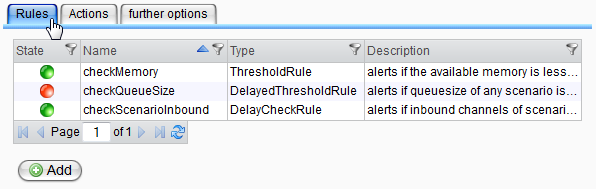
The standard view displays a table of all saved rule definitions along with their name, type, description, and corresponding state (active/inactive). Use the context menu of the table to activate, deactivate, delete, or view/edit a rule in a detail dialog.
Clicking the "Add" button below the table launches the wizard to create a new rule definition.
Wizard for Rule Definition
The alert wizard facilitates the creation of rule definitions in four steps. Navigating forward saves the selections or indicates any missing input, while navigating backward discards the data in the current view.
Step 1 (General Settings)
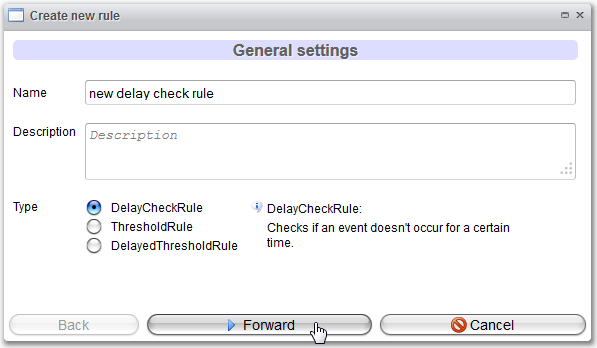
In the first step, define a name, an optional description, and the rule type. For easier handling, an explanation appears for each rule type when selected.
Step 2 (Rule Context)
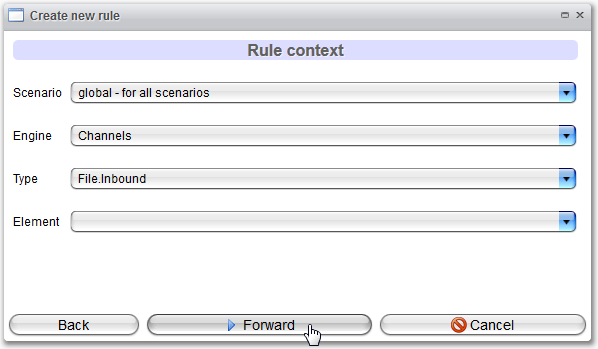
The second step restricts the rule's range of validity. Selections for scenario and engine are mandatory, while restricting the channel type or specifying a concrete channel of a process model is optional.
The selections made here will affect the available variables in the next step. For example, if restrictions are applied to all existing File-Inbound-Channels (as shown in the figure above), only variables relevant to these will be displayed for selection.
Step 3 (Rule Conditions)
In the third step of the wizard, define the criteria under which the rule triggers its actions using type-specific formulas.
You can hover over the speech bubbles next to the variable choice fields for brief information about the selected variable.
Additionally, for each rule type, configure the time span for rule checking. This allows a combination of time selections and existing business calendars, which generally indicate active appointments.
By checking the "exclusive calendar" box, the calendar can be inverted.
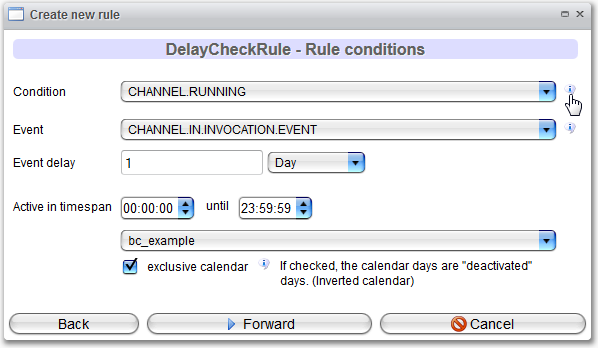
For the DelayCheckRule, select two variables: the first defines the channel or process model's state, and the second specifies the observable event.
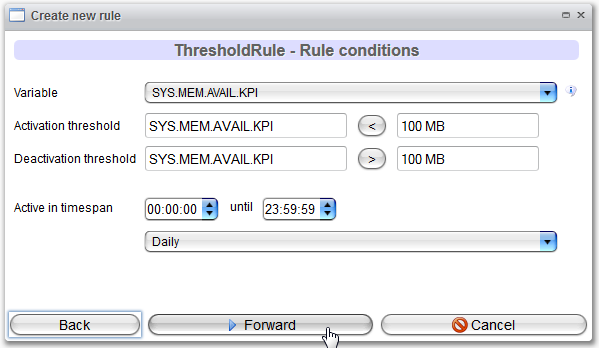
Threshold values for the ThresholdRules are typically set through numerical values. As illustrated in the figure above, for memory-related variables (e.g., available memory space), you can use Bytes as well as MB for Megabytes and GB for Gigabytes.
Clicking on a comparative operator changes its direction. The ThresholdRule requires a second threshold for rule deactivation, which can differ from the activation threshold.
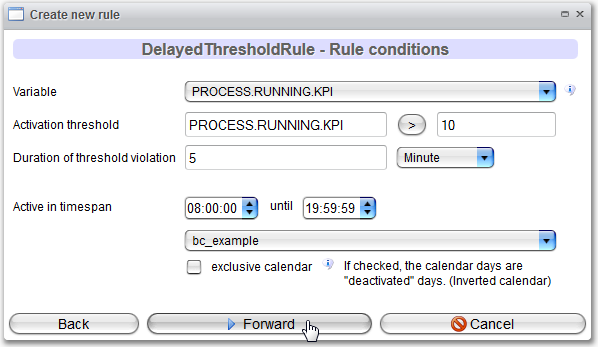
The DelayedThresholdRule needs both a threshold and a time span in which the threshold should be breached.
Step 4 (Actions)
In the fourth step, configure the actions that will be executed if the rule is triggered. For more information about the actions, refer to Alert Actions.
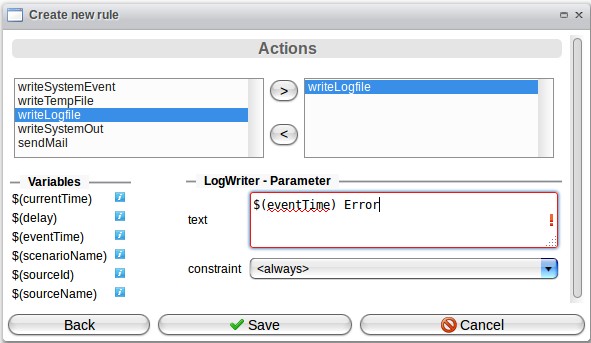
In the dialog, add the actions to be executed on the right. The lower part on the left side displays all variables that may be included in the error message defined on the right side.
You must also select a constraint that defines when the action is executed; three options are available:
raised: The action will be performed if the alert condition arises (e.g., when the number of queued process instances exceeds a certain limit).normal: The action will be performed if the alert condition disappears (e.g., when the number of process instances returns to the expected normal amount).<always>: The action will be performed in both cases—when the alert condition occurs and when it returns to its normal state.
In the figure below, a log file will be written, using the value of the variable eventTime in the error message.
Available Variables
| Variable | Content |
|---|---|
| value | Value of the rule variable; available only for threshold rules. |
| threshold | Threshold that must be exceeded by the value to raise the alert; available only for threshold rules. |
| currentTime | Current timestamp; formatted as day.month.year hour:minute:seconds (e.g., 14.02.2019 16:25:10). |
| delay | Value of the delay in time; applicable for delay check rules and delayed threshold rules; formatted as number unit (e.g., 14 MINUTE or 34 SECOND). |
| eventTime | Instant in time when the last event occurred; available only for delay check rules; formatted as day.month.year hour:minute:seconds (e.g., 14.02.2019 16:25:10). |
| scenarioName | Name of the scenario for which the problem occurred. |
| sourceId | Unique identifier of the source element where the problem occurred (e.g., the ID of a channel or process model); not available for every rule. |
| sourceName | Name of the source element where the problem occurred (e.g., the name of a channel or process model); not available for every rule. |
| raised | Boolean value (true or false); if the constraint is set to <always>, you can use this value to indicate whether the alert rule was triggered or returned to normal. |